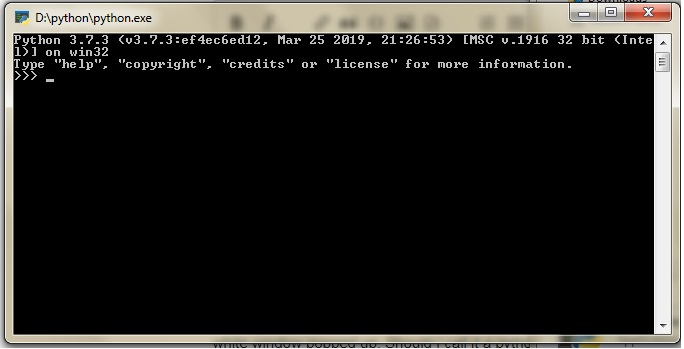
Decoding Python: Understanding Its Interpreted and Compiled

Have you ever wondered why Python is referred to as a Python-interpreted language while languages like C, C++, and Java […]
Knowledge is Power
Knowledge is Power
BetaProgrammer.com
Have you ever wondered why Python is referred to as a Python-interpreted language while languages like C, C++, and Java […]
In the context of Python, a Python environment variable refers to an environment variable that often interacts with environment variables […]

CNN stands for Convolutional Neural Network. It is a type of artificial neural network that revolves around for processing of […]
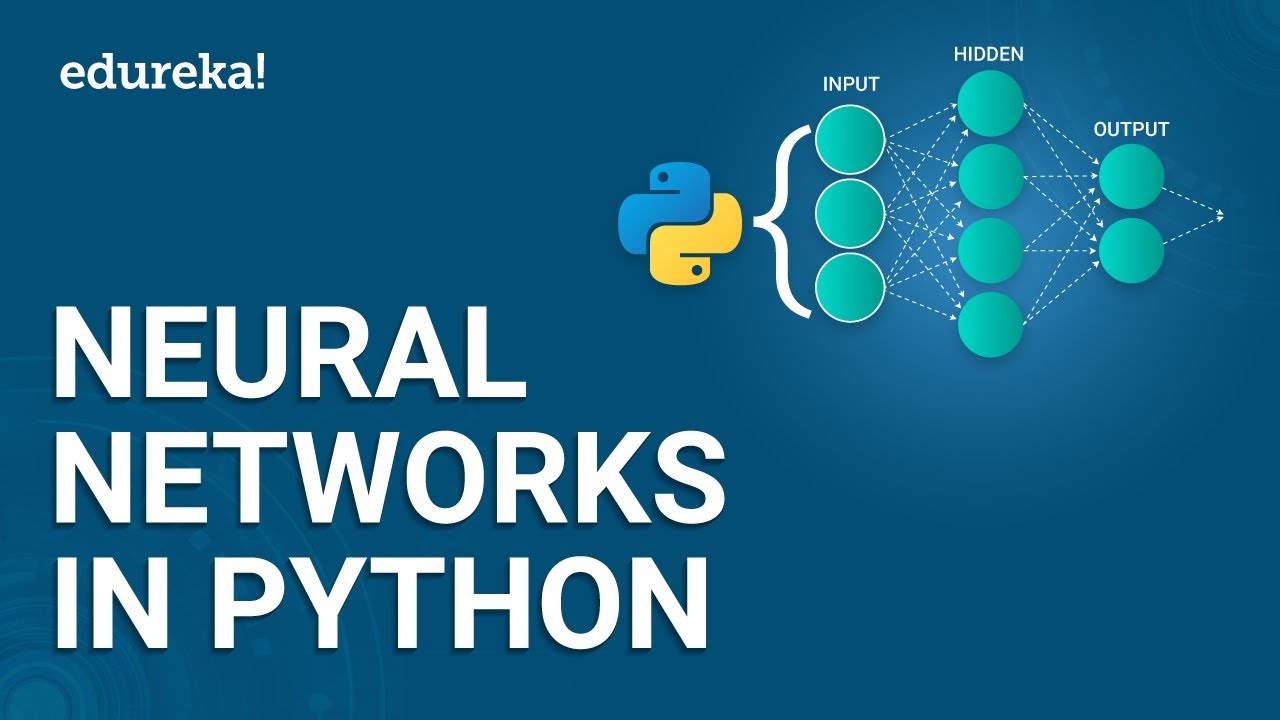
In terms of biology, a neuron is the basic structural and functional unit of the nervous system responsible for transmitting […]
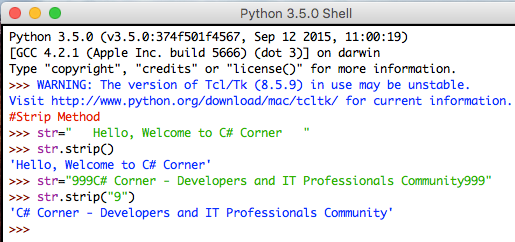
When the strip is used as a noun, the strip can be said as an act of undressing. However, when […]

In the world of programming languages, Golang (also known as Go), has been shown as a powerful and efficient language. […]
As a developer, choosing a programming language can be challenging since each has its advantages and disadvantages. We will provide […]
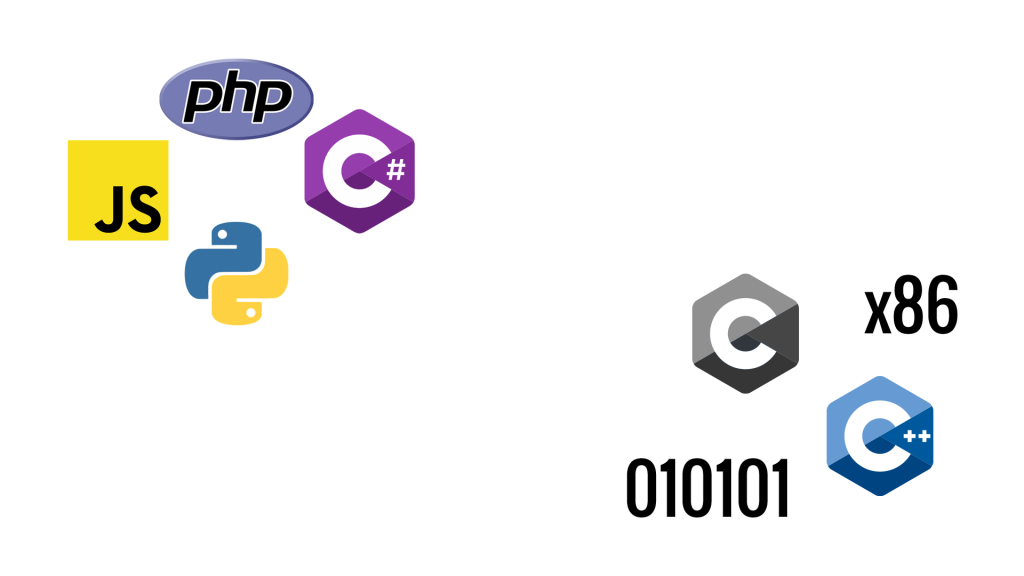
Are you looking for information on High-level and Low-level Programming Languages? You are in the right place. High-Level Language High-level […]

Hardware programming involves using coding languages to control the physical components of electronic devices such as microcontrollers, sensors, and actuators. […]

Machine language is the low-level instructions that computers use to communicate with each other, and they are often seen as […]